> ## Documentation Index
> Fetch the complete documentation index at: https://checksum.ai/docs/llms.txt
> Use this file to discover all available pages before exploring further.

# Environments & Test Users

> Your project can test against several environments, such as staging, production, or any other environment, each with its own URL, login URL, test users, and custom variables. Developers pull these settings with the CLI, declare them in checksum.config.ts, and override them per run with envOverrides.

<Info>
  **Configured by Checksum**

  During [onboarding](/docs/onboarding), the Checksum team creates your first environment from the UAT URL and credentials you share. You don't need to do anything here to get started. If you'd rather not make a change yourself, ask your Checksum contact.
</Info>

## At a glance

| You want to | Do this |
| - | - |
| Get your project's settings locally | [Download them with the CLI](#download-your-settings-with-the-cli) into a `.env` file |
| Point one run at a preview URL | [Pass `envOverrides`](#override-values-for-a-single-run) to the API or the GitHub Action |
| Test against your local build | [Set the variable in your shell](#override-values-locally-and-in-ci), e.g. `BASE_URL=http://localhost:3000` |
| Add an environment, user, or variable | [Use Settings → Testing Environment](#managing-environments) in the web app, and [ask Checksum to add it to your `.env`](#download-your-settings-with-the-cli) |

<div className="ai-ref">
  <Accordion title="Reference for AI: environments at a glance" icon="robot">
    | Interface | Command / field | What it does | Key constraint |
    | - | - | - | - |
    | CLI | `npx checksumai dotenv --download --api-key=$CHECKSUM_API_KEY` | Writes all project variables to `.env` | Values are maintained by Checksum. Re-run after every update |
    | Config | `environments[]` in `checksum.config.ts` | Declares environments and users for test runs | `name` must match the web app environment name |
    | REST API | `envOverrides` on `POST /public-api/v2/execution/grep` and `POST /public-api/v1/auto-generate` | Per-run variables layered on the project environment | `CI` and `CHECKSUM_*` keys rejected with `400` |
    | GitHub Action | `env-overrides` input | Per-run variables from a workflow | grep mode only |
    | Shell / CI | `BASE_URL=… npx checksumai test` | Overrides a variable for one process or job | Always wins over `.env` |
    | Web app | Settings → Testing Environment | Add environments, test users, and custom variables for web app features | Not copied to `.env` or `checksum.config.ts`. Credentials are used only during test execution and agent sessions |
    * Precedence: explicit shell/CI variable > `envOverrides` (one cloud run) > downloaded `.env`.
    * To change `.env` values, send them to Checksum. Any automation that starts a Checksum test run or AI generation should download the latest `.env` first.
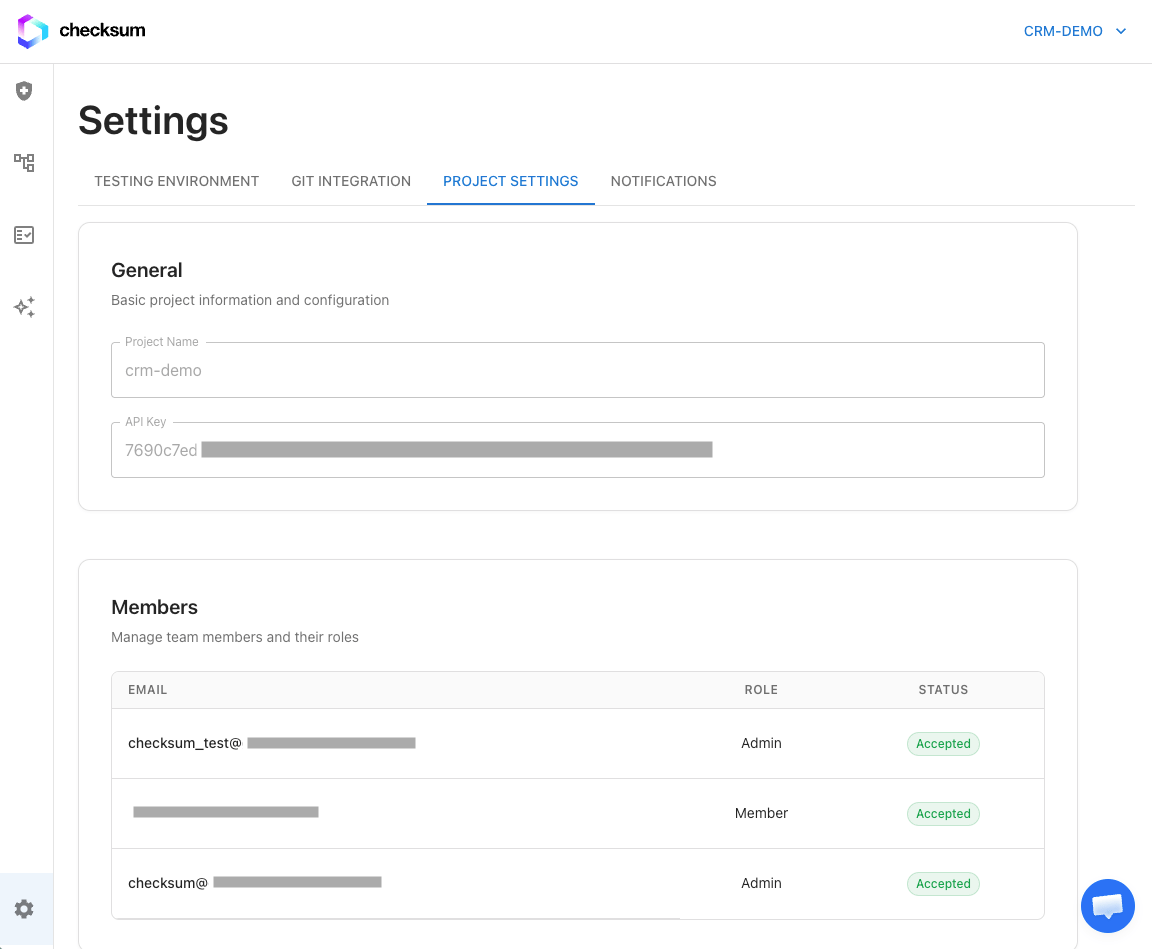
    * API key: web app → **Settings → Project Settings** ([API keys](/docs/authentication#your-api-key)).
  </Accordion>
</div>

<div className="part dev"><span className="part-icon">{"</>"}</span><div><div className="part-title">Developer guide</div><div className="part-sub">Pull settings with the CLI, declare environments in config, and override values per run</div></div></div>

## Work with environment variables

An environment has a URL, a login URL, test-user credentials, and any **custom environment variables** your tests need, such as API keys or feature flags. These settings live in two places, and neither one updates the other automatically:

* **Your tests repository.** Your tests read from the `.env` file and from `checksum.config.ts`. Changing a setting in the web app doesn't update either file.
* **The web app.** To use environments, test users, or variables from the web app, you have to add them in the web app too. It doesn't import them from your tests repository.

When you add or change an environment, a test user, or a variable, update both places: add it in the web app, and ask your Checksum contact to add it to your `.env` (see [Download your settings with the CLI](#download-your-settings-with-the-cli)). You can also override individual values for a single run when you need to.

### Download your settings with the CLI

Run `dotenv` from your tests repository to write every configured variable into a local `.env` file. Your API key is on **Settings → Project Settings** (see [API keys](/docs/authentication#your-api-key)).

```bash theme={null}
npx checksumai dotenv --download --api-key=<YOUR_API_KEY>
```

This writes all configured variables (environment URL, login URL, credentials, custom variables) to `.env` in your test repository.

To change what the download contains, send the new or updated variables to your Checksum contact. Checksum makes the change, and then anyone on your team can download the updated file with the same command. Each time that happens:

* Tell your team to run the command again so everyone has the latest `.env`.
* Make sure any automation script that starts a Checksum test run or AI generation downloads the latest `.env` as one of its steps.

### Declare environments in `checksum.config.ts`

Your tests repository also lists the environments tests can run against. Checksum sets this up for you. The one rule to remember when you edit it: each entry's `name` must match the environment's name in the web app.

```ts theme={null}
environments: [
  {
    name: "staging",
    baseURL: "https://staging.myapp.com",
    loginURL: "https://staging.myapp.com/login",
    default: true,
    users: [
      { role: "admin", username: process.env.ADMIN_USERNAME, password: process.env.ADMIN_PASSWORD, default: true },
    ],
  },
],
```

Every field is described in the [configuration reference](/docs/test-repository#configure-checksum-config-ts).

### Override values for a single run

When each pull request deploys to its own preview URL, pass `envOverrides` with the run. The values apply to that one run or generation session, on top of your project environment.

```json theme={null}
{ "envOverrides": { "BASE_URL": "https://pr-42.preview.example.com" } }
```

It works on [grep runs (v2)](/docs/running-tests#start-a-cloud-run-from-the-rest-api) and on [generation for a PR](/docs/generate-tests#start-generation-from-the-rest-api). Only your own application's variables are allowed: names reserved by Checksum, including `CI` and anything starting with `CHECKSUM_`, are rejected with `400`.

From a workflow, the `checksum-ai/test-run-action` takes the same values as `env-overrides` (grep mode only):

```yaml theme={null}
- uses: checksum-ai/test-run-action@v2
  with:
    api-key: ${{ secrets.CHECKSUM_API_KEY }}
    grep: 'checkout'
    env-overrides: |
      {"BASE_URL": "https://pr-${{ github.event.pull_request.number }}.preview.example.com"}
```

See [GitHub Action](/docs/ci-integration#run-checksum-with-the-github-action) for the rest of its inputs.

### Override values locally and in CI

A variable you set explicitly in your shell or CI job **always takes precedence** over the downloaded `.env` file. That makes it easy to point a run at a local build:

```bash theme={null}
# Override the environment URL for local testing
BASE_URL=http://localhost:3000 npx checksumai test
```

In CI, set overrides as environment variables or secrets:

```yaml theme={null}
env:
  CHECKSUM_API_KEY: ${{ secrets.CHECKSUM_API_KEY }}
  BASE_URL: ${{ secrets.BASE_URL }}
  USERNAME: ${{ secrets.USERNAME }}
  PASSWORD: ${{ secrets.PASSWORD }}
```

<div className="ai-ref">
  <Accordion title="Reference for AI: environment variables, envOverrides, and precedence" icon="robot">
    #### CLI: `npx checksumai dotenv`

    | Flag | Required | Description |
    | - | - | - |
    | `--download` | Yes | Download the environment variables |
    | `--api-key=<KEY>` | Yes | Your Checksum project API key |

    Output: `.env` in the test repository with environment URL, login URL, credentials, and custom variables. Values are maintained by Checksum and changed on request, not by editing settings in the web app. Re-run after every update, and in any automation that starts a Checksum test run or AI generation.

    #### `envOverrides` (REST API)

    | Field | Type | Required | Description |
    | - | - | - | - |
    | `envOverrides` | object (string → string) | No | Your application's own variables, e.g. `BASE_URL`. Keys named `CI` or starting with `CHECKSUM_` are rejected with `400`. |

    | Endpoint accepting `envOverrides` | Documented on |
    | - | - |
    | `POST https://api.checksum.ai/public-api/v2/execution/grep` | [Execution endpoints](/docs/running-tests#start-a-cloud-run-from-the-rest-api) |
    | `POST https://api.checksum.ai/public-api/v1/auto-generate` | [Generate Tests](/docs/generate-tests#reference-for-ai-generation-rest-api) |

    #### GitHub Action

    Input `env-overrides`: JSON object string, grep mode only.

    #### Precedence

    | Source | Precedence | Scope |
    | - | - | - |
    | Explicit shell / CI variable | Highest | That process or job |
    | `envOverrides` (API / Action) | Layered on the project environment | One cloud run or session |
    | Downloaded `.env` (maintained by Checksum) | Base | Every run that uses the file |

    Config rule: each `environments[].name` in `checksum.config.ts` must match the web app environment name. Custom variables added in **Settings → Testing Environment** are available to web app features and agent sessions but are not added to the `.env` download. Checksum adds variables to the download on request.
  </Accordion>
</div>

<div className="part ui"><span className="part-icon">▦</span><div><div className="part-title">In the Checksum web app</div><div className="part-sub">Add environments, test users, and custom variables</div></div></div>

## Managing environments

Each environment has:

| Field | Description |
| - | - |
| **Name** | A label such as "Staging" or "Production". It must match the `name` in [`checksum.config.ts`](/docs/test-repository#configure-checksum-config-ts). |
| **Environment URL** | The URL of the application under test (e.g. `https://staging.myapp.com`) |
| **Login URL** | The URL of your login page, if your app requires authentication |

<Frame caption="Environment URL and Login URL in the Checksum web app.">
  <img src="https://mintcdn.com/checksum/jreTwWrmFV2djRX_/images/project_settings.png?fit=max&auto=format&n=jreTwWrmFV2djRX_&q=85&s=a958d84039b5f821cb26804aadd27c94" alt="Project Settings" width="1152" height="949" data-path="images/project_settings.png" />
</Frame>

### Add or edit an environment

<Steps>
  <Step title="Open the settings">
    In [app.checksum.ai](https://app.checksum.ai), go to **Settings → Testing Environment**.
  </Step>

  <Step title="Add or select an environment">
    Enter or update the name, environment URL, and login URL.
  </Step>

  <Step title="Add test users">
    Add at least one test user (see [Test users](#test-users)) so the agent and test runs can log in.
  </Step>
</Steps>

<Frame caption="Settings → Testing Environment.">
  <img src="https://mintcdn.com/checksum/jreTwWrmFV2djRX_/images/settings_page.png?fit=max&auto=format&n=jreTwWrmFV2djRX_&q=85&s=748d23c5bef5d5f89fe4aa8bb0581505" alt="Testing Environment settings" width="1159" height="948" data-path="images/settings_page.png" />
</Frame>

<Note>
  **Also update your tests repository**

  An environment or test user you add here is available only in the web app. To run tests against it from your repository, add it to `environments` in [`checksum.config.ts`](#declare-environments-in-checksum-config-ts) and ask your Checksum contact to add its URLs and credentials to your [`.env`](#download-your-settings-with-the-cli).
</Note>

Before the agent can reach a new environment behind a VPN or firewall, check that Checksum's IPs are allowlisted there too ([Security & Access](/docs/security-and-access#network-access)).

## Test users

Test users are the credentials Checksum uses to log in to your application. Each environment can have several users for different roles or permission levels, for example an admin and a read-only viewer.

<Steps>
  <Step title="Go to Settings → Testing Environment" />

  <Step title="Select the environment" />

  <Step title="Click Add User" />

  <Step title="Enter the username and password">
    Save. Story files reference the user they log in as with the `envUser` frontmatter field (see [Story & Test Format](/docs/story-and-test-format)).
  </Step>
</Steps>

<Note>
  **Note**

  Credentials are stored securely and are used only during test execution and agent sessions.
</Note>

<Tip>
  **One user per shard**

  If you plan to [shard](/docs/sharding) large runs and your backend invalidates concurrent sessions for one account, add a separate test user per shard.
</Tip>

## Add a custom variable

In **Settings → Testing Environment**, add the variable name and value to the environment so web app features and agent sessions can use it. This doesn't add it to your `.env`. To use the variable in your tests repository, send it to your Checksum contact so they can add it to the download, then have your team run [`dotenv --download`](#download-your-settings-with-the-cli) again.

## Troubleshooting

<AccordionGroup>
  <Accordion title="Local runs use an old URL">
    Your `.env` is stale, or a shell variable is overriding it. Re-run `dotenv --download` and check `echo $BASE_URL`.
  </Accordion>

  <Accordion title="The example test fails at login">
    Check that the login URL and the default test user's credentials are correct and that the account isn't locked or behind MFA the agent can't complete. Then re-download variables and run `npx checksumai test -g "example"`.
  </Accordion>

  <Accordion title="A new environment is unreachable from Checksum">
    Allowlist Checksum's IPs on that environment's firewall or VPN. See [Network access](/docs/security-and-access#network-access).
  </Accordion>
</AccordionGroup>

## Related

<CardGroup cols={2}>
  <Card title="Test Repository & Config" icon="gear" href="/docs/test-repository">
    `checksum.config.ts` and the repo mirror.
  </Card>

  <Card title="Running Tests" icon="play" href="/docs/running-tests">
    Every way to start a run.
  </Card>

  <Card title="Security & Access" icon="shield-halved" href="/docs/security-and-access">
    IP allowlist and data handling.
  </Card>
</CardGroup>
