> ## Documentation Index
> Fetch the complete documentation index at: https://checksum.ai/docs/llms.txt
> Use this file to discover all available pages before exploring further.

# Git Integration

> Checksum reads your codebase and delivers tests as pull requests through a connection to your Git provider. It supports GitHub (including GitHub Enterprise Cloud on *.ghe.com), GitLab, Bitbucket, and Azure DevOps (code repositories only). This page explains how that connection works, and how to review it, change it, or add a repository later.

<Info>
  **Connected during onboarding**

  The Checksum team connects your code and tests repositories with you during [onboarding](/docs/onboarding#2-connecting-your-codebase). Come back here to check the connection status, review permissions, switch repositories, connect an additional repository, or reconnect after a token rotation. Your Checksum contact can also make these changes for you.
</Info>

## At a glance

| Provider | How Checksum connects | Can host your tests repo? |
| - | - | - |
| GitHub | [The Checksum GitHub App](#github-install-or-update-the-checksum-github-app) | Yes |
| GitHub Enterprise Cloud (`*.ghe.com`) | [A GitHub App on your instance](#github-enterprise-cloud-with-data-residency) | Yes |
| GitLab | [An access token](#connect-gitlab-with-an-access-token) | Yes |
| Bitbucket | [An access token](#connect-bitbucket) | Yes |
| Azure DevOps | [A personal access token](#connect-azure-devops-code-repository) | Code repository only |

<div className="ai-ref">
  <Accordion title="Reference for AI: Git providers at a glance" icon="robot">
    | Provider | Connection method | Code repository (read-only) | Tests repository (read/write) |
    | - | - | - | - |
    | GitHub | Checksum GitHub App | Supported | Supported |
    | GitHub Enterprise Cloud | GitHub App on your `*.ghe.com` instance | Supported | Supported |
    | GitLab | Personal or project access token | Supported | Supported |
    | Bitbucket | Access token | Supported | Supported |
    | Azure DevOps | Personal access token (PAT) | Supported | Not supported |

    * Where: web app → **Settings → Git Integration**. Checksum connects repositories during [onboarding](/docs/onboarding#2-connecting-your-codebase).
    * Webhooks (push, PR, installation events) are set up automatically and keep the [repo mirror](/docs/test-repository#the-repo-mirror) in sync.
    * Not supported: GitHub Enterprise **Server** (self-hosted), and tests repositories on Azure DevOps.
    * Removing the integration disables test generation and auto-healing.
  </Accordion>
</div>

<div className="part dev"><span className="part-icon">{"</>"}</span><div><div className="part-title">Developer guide</div><div className="part-sub">The access Checksum needs on each provider</div></div></div>

## Required permissions

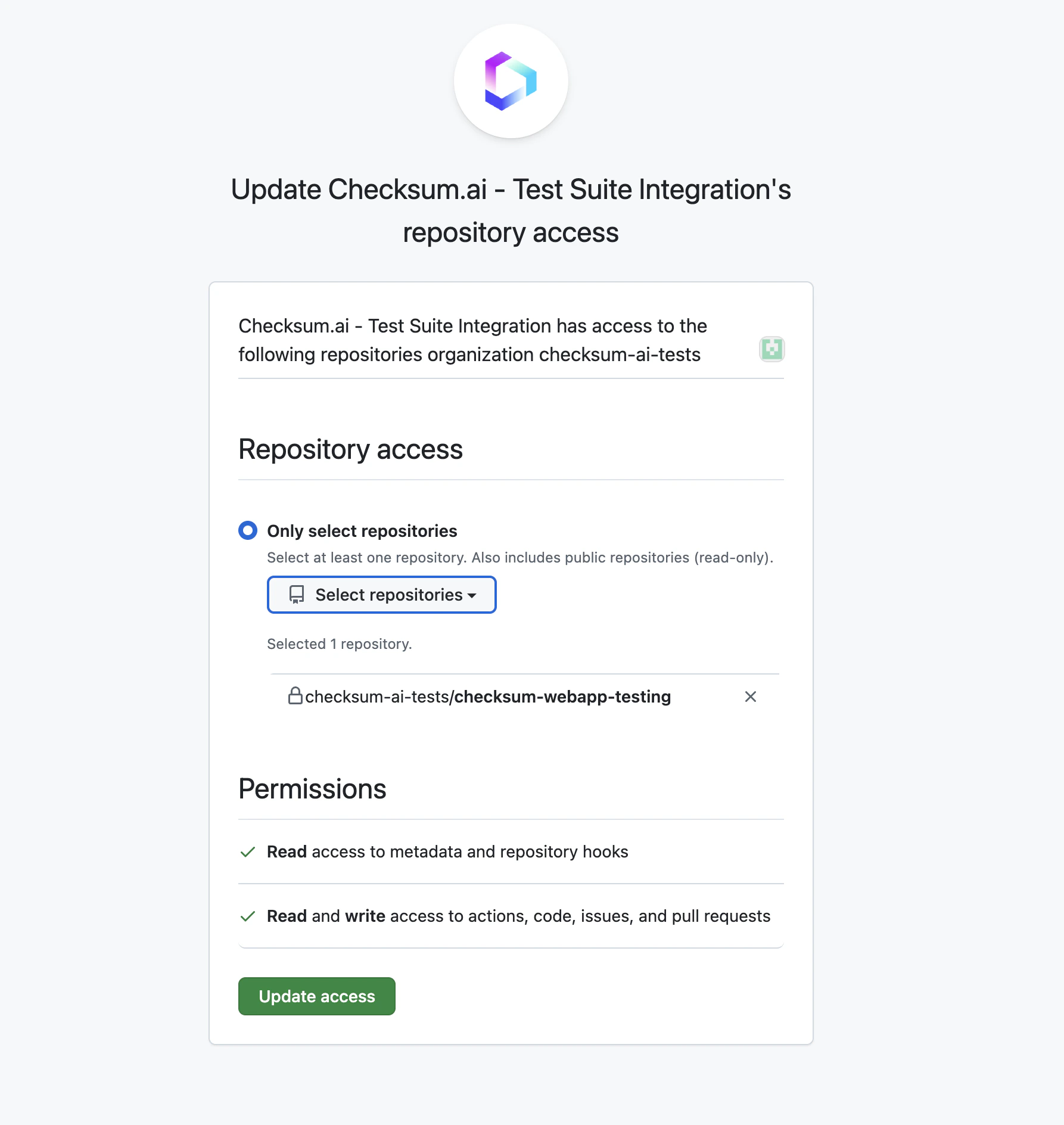
Checksum needs **read-only** access to your application code, and **read and write** access to your tests repository, where it opens pull requests. On GitHub you simply approve the Checksum app, which requests these permissions for you. On GitLab, Bitbucket, and Azure DevOps you create a token with the scopes below.

| Provider | Code repository (read-only) | Tests repository (read/write) |
| - | - | - |
| **GitHub** (GitHub App) | `Metadata: Read`, `Contents: Read`, `Pull requests: Read` | `Metadata: Read`, `Contents: Read + Write`, `Pull requests: Read + Write`, `Issues: Read + Write`, `Actions: Read + Write` |
| **GitLab** (personal or project access token) | Scopes `read_api`, `read_repository`; role `Reporter` | Scopes `api`, `write_repository`; role `Developer` |
| **Bitbucket** (access token) | `Repositories: Read`, `Pull requests: Read` | `Repositories: Read + Write`, `Pull requests: Read + Write` |
| **Azure DevOps** (PAT) | `Code (Read)` | Not supported today |

A few provider details to know. On **GitHub**, if one app installation covers both repositories, GitHub shows the combined request (read + write on actions, code, issues, and pull requests), but write access is only used on the tests repository. On **GitLab**, protected branches may need `Maintainer`, or a branch rule that lets Checksum merge. On **Bitbucket**, repository access and pull-request access are separate permissions, so grant both. **Azure DevOps** is supported for code repositories only; Checksum-managed tests repositories aren't supported there.

<div className="ai-ref">
  <Accordion title="Reference for AI: provider permissions" icon="robot">
    | Provider | Credential | Code repository (read-only) | Tests repository (read/write) |
    | - | - | - | - |
    | GitHub | GitHub App (no scopes to choose) | `Metadata: Read`, `Contents: Read`, `Pull requests: Read` | `Metadata: Read`, `Contents: Read + Write`, `Pull requests: Read + Write`, `Issues: Read + Write`, `Actions: Read + Write` |
    | GitLab | Personal or project access token | Scopes `read_api`, `read_repository`; role `Reporter` | Scopes `api`, `write_repository`; role `Developer` (`Maintainer` or a branch rule for protected branches) |
    | Bitbucket | Access token | `Repositories: Read`, `Pull requests: Read` | `Repositories: Read + Write`, `Pull requests: Read + Write` |
    | Azure DevOps | PAT | `Code (Read)` | Not supported |

    * Write access is used only on the tests repository. Checksum never writes to the code repository.
    * GitHub combined installations show read + write on actions, code, issues, and pull requests.
    * Bitbucket: grant repository and pull-request access separately.
  </Accordion>
</div>

<div className="part ui"><span className="part-icon">▦</span><div><div className="part-title">In the Checksum web app</div><div className="part-sub">Connect providers, change repositories, and check status in Settings → Git Integration</div></div></div>

## Add or reconnect a repository

Use these steps to connect an additional repository, move to a different Git provider, or reconnect after an app was uninstalled or a token expired. The same steps are used during onboarding.

<Tabs>
  <Tab title="GitHub">
    ### GitHub: install or update the Checksum GitHub App

    <Steps>
      <Step title="Open Settings → Git Integration">
        In the Checksum web app. Under **Codebase repository** (or **Tests Repository**), click **Connect** / **Install GitHub App**.
      </Step>

      <Step title="Authorize on GitHub">
        You're redirected to GitHub to authorize the Checksum app. This may require an organization **owner**.
      </Step>

      <Step title="Choose repositories">
        Grant access to **only the repositories** Checksum needs, then complete the installation.
      </Step>

      <Step title="Select repositories in Checksum">
        Back in Checksum, pick the tests and code repositories (see [Change repositories](#change-repositories)).
      </Step>
    </Steps>

    <Frame caption="Authorizing the Checksum GitHub App.">
      <img src="https://mintcdn.com/checksum/jreTwWrmFV2djRX_/images/oath-access.png?fit=max&auto=format&n=jreTwWrmFV2djRX_&q=85&s=bc9f0b847e8b8b7b9171132b5591fb45" alt="GitHub App authorization" width="1786" height="1888" data-path="images/oath-access.png" />
    </Frame>

    #### If you're not an organization owner

    GitHub can't complete the install for you directly. The button reads **Install and request** (or **Request**), and GitHub emails your organization owners to approve it. Until they do, Checksum shows the app as not installed. To approve the request, an organization owner:

    1. Opens the email notification, or goes to the organization's **Settings → Third-party Access → GitHub Apps**.
    2. Finds the pending Checksum request.
    3. Reviews the requested repositories and permissions, adjusting the repository selection if needed.
    4. Clicks **Approve** (or **Install**).

    Organizations can restrict who installs apps. If repository admins are blocked from installing GitHub Apps, an organization owner must approve or install the Checksum app. Once approved, it shows as active in **Settings → Git Integration**.

    Installing the app also sets up the webhooks that keep the [repo mirror](/docs/test-repository#the-repo-mirror) in sync, and it enables `/checksum generate` comments on PRs (see [Generate Tests](/docs/generate-tests)).
  </Tab>

  <Tab title="GitHub Enterprise (ghe.com)">
    ### GitHub Enterprise Cloud with data residency

    If your organization lives on a dedicated `*.ghe.com` subdomain (e.g. `acme.ghe.com`), connect it from **Settings → Git Integration**. Connecting takes about two minutes. It installs a Checksum GitHub App on **your own instance**, so there are no tokens or secrets to share.

    <Warning>
      **Cloud only**

      This is for GitHub Enterprise Cloud **with data residency** (`*.ghe.com`). If you're on standard `github.com`, use the GitHub steps instead. GitHub Enterprise **Server** (self-hosted, e.g. `github.your-company.com`) isn't supported yet.
    </Warning>

    #### What you'll need

    | Requirement | Details |
    | - | - |
    | **A GitHub organization owner** | Creating and installing a GitHub App on your organization requires the **owner** role. If you aren't an owner, ask one to run this flow. |
    | **Your instance host** | Your enterprise's `*.ghe.com` subdomain, e.g. `acme.ghe.com` |
    | **Your organization name** | The organization inside your enterprise that owns the repositories |
    | **Access to Checksum** | Signed in at [app.checksum.ai](https://app.checksum.ai) with your project open |

    <Tip>
      **Tip**

      In the same browser, sign in to GitHub as a member of your `*.ghe.com` enterprise (not `github.com`) before you start. The flow opens a page on your enterprise instance.
    </Tip>

    <Steps>
      <Step title="Open Git Integration">
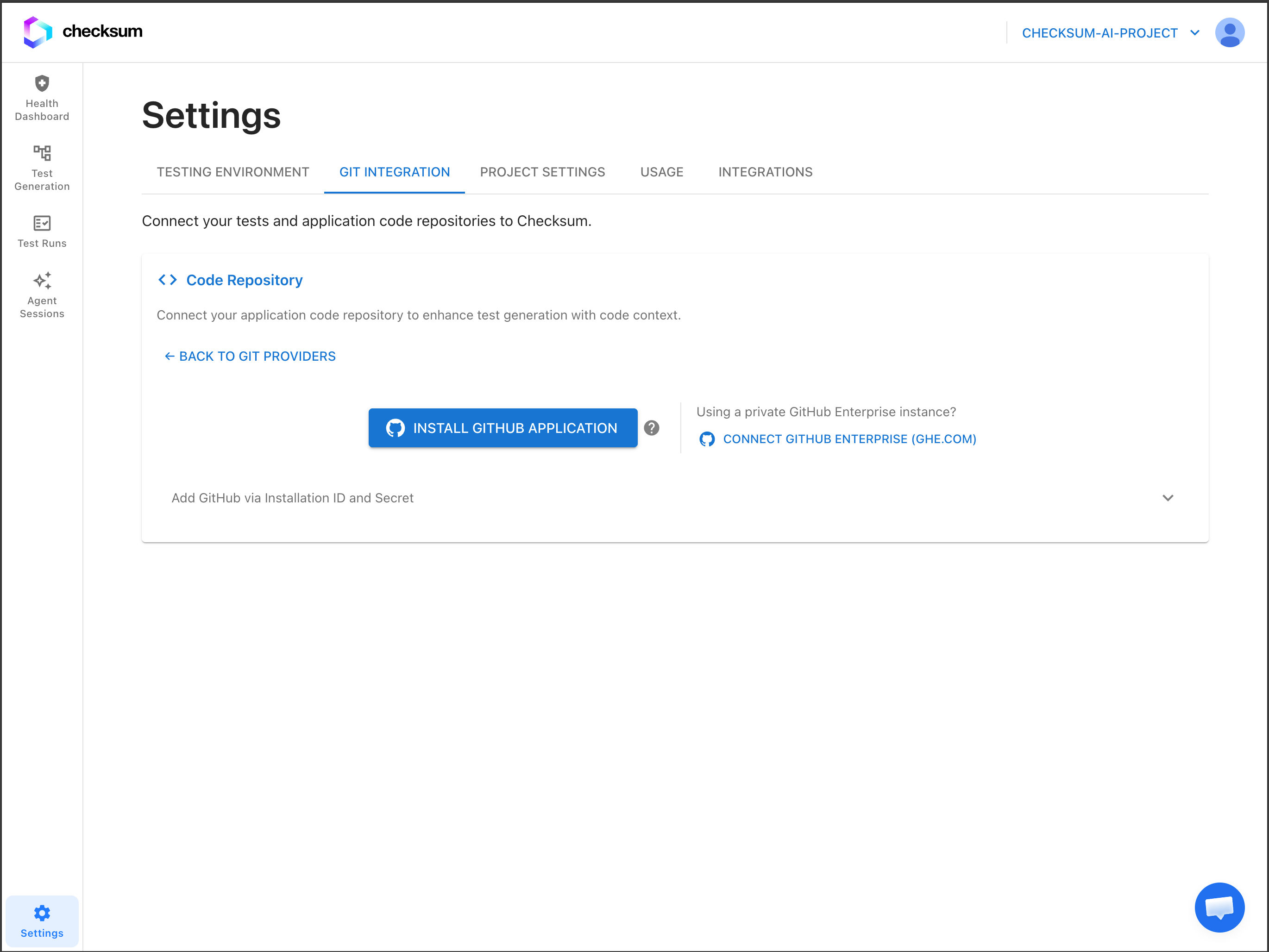
        Go to **Settings → Git Integration** and find **Tests Repository** or **Code Repository**. Each has its own connection, so repeat this flow for both if you need both.

        <Frame>
          <img src="https://mintcdn.com/checksum/Sno3sRcBVqZEH5c5/images/ghe-connect-entry.png?fit=max&auto=format&n=Sno3sRcBVqZEH5c5&q=85&s=91ec20582d387a4c5e3d6015e8023d63" alt="Git Integration settings with the GitHub Enterprise connect option" width="2740" height="2056" data-path="images/ghe-connect-entry.png" />
        </Frame>
      </Step>

      <Step title="Click &#x22;Connect GitHub Enterprise (ghe.com)&#x22;">
        Under **Using a private GitHub Enterprise instance?**, click **Connect GitHub Enterprise (ghe.com)**. The **Connect GitHub Enterprise** dialog opens.
      </Step>

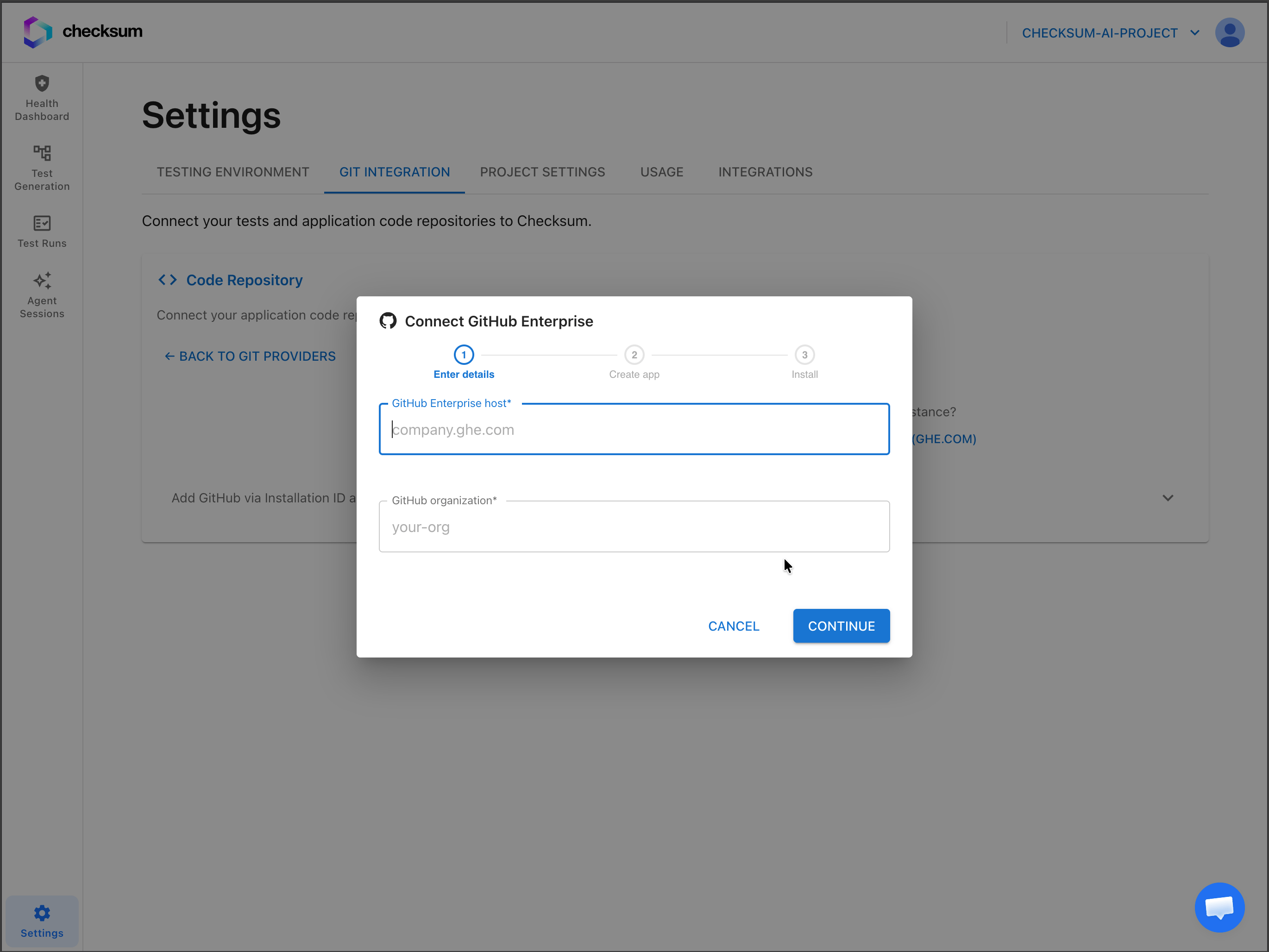
      <Step title="Enter your host and organization">
        Fill in both fields and click **Continue**.

        | Field | Example | Notes |
        | - | - | - |
        | **GitHub Enterprise host** | `acme.ghe.com` | Your `*.ghe.com` subdomain. No `https://`, just the host. |
        | **GitHub organization** | `acme-engineering` | The organization within your enterprise that owns the repositories |

        <Frame>
          <img src="https://mintcdn.com/checksum/Sno3sRcBVqZEH5c5/images/ghe-connect-form.png?fit=max&auto=format&n=Sno3sRcBVqZEH5c5&q=85&s=afedb499ff127bc0f98ee6167c236593" alt="Connect GitHub Enterprise dialog" width="2740" height="2056" data-path="images/ghe-connect-form.png" />
        </Frame>
      </Step>

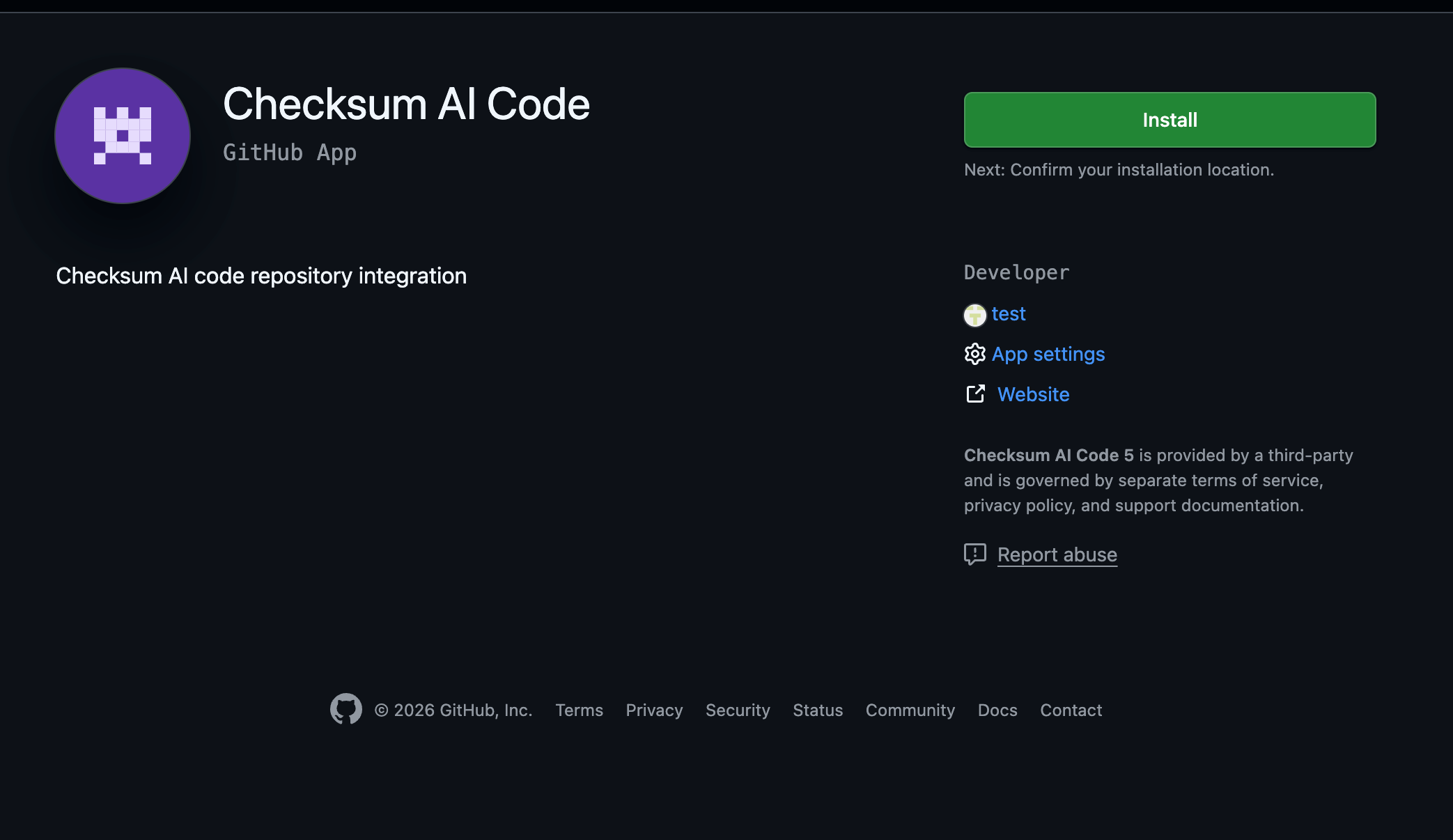
      <Step title="Create the app on your instance">
        Click **Open GitHub**. A page on your enterprise instance opens to register the **Checksum AI Code** (or **Checksum AI Tests**) app. Checksum has already set the permissions and webhook. Confirm the app name and click **Create GitHub App**. GitHub then shows the new app with an **Install** button.

        <Note>
          **Note**

          This step only **registers** the app. It doesn't grant access to any repositories yet.
        </Note>

        <Tip>
          **Tip**

          Use **Open GitHub** so the app is created with Checksum's settings. If it opens on the wrong GitHub account, right-click the button to copy the link, then open it in a tab where you're signed in as an organization owner.
        </Tip>

        <Frame>
          <img src="https://mintcdn.com/checksum/Sno3sRcBVqZEH5c5/images/ghe-create-app.png?fit=max&auto=format&n=Sno3sRcBVqZEH5c5&q=85&s=438192c245f80e3818534723bbf0d9f6" alt="The Checksum app registered on your enterprise instance" width="2086" height="1206" data-path="images/ghe-create-app.png" />
        </Frame>
      </Step>

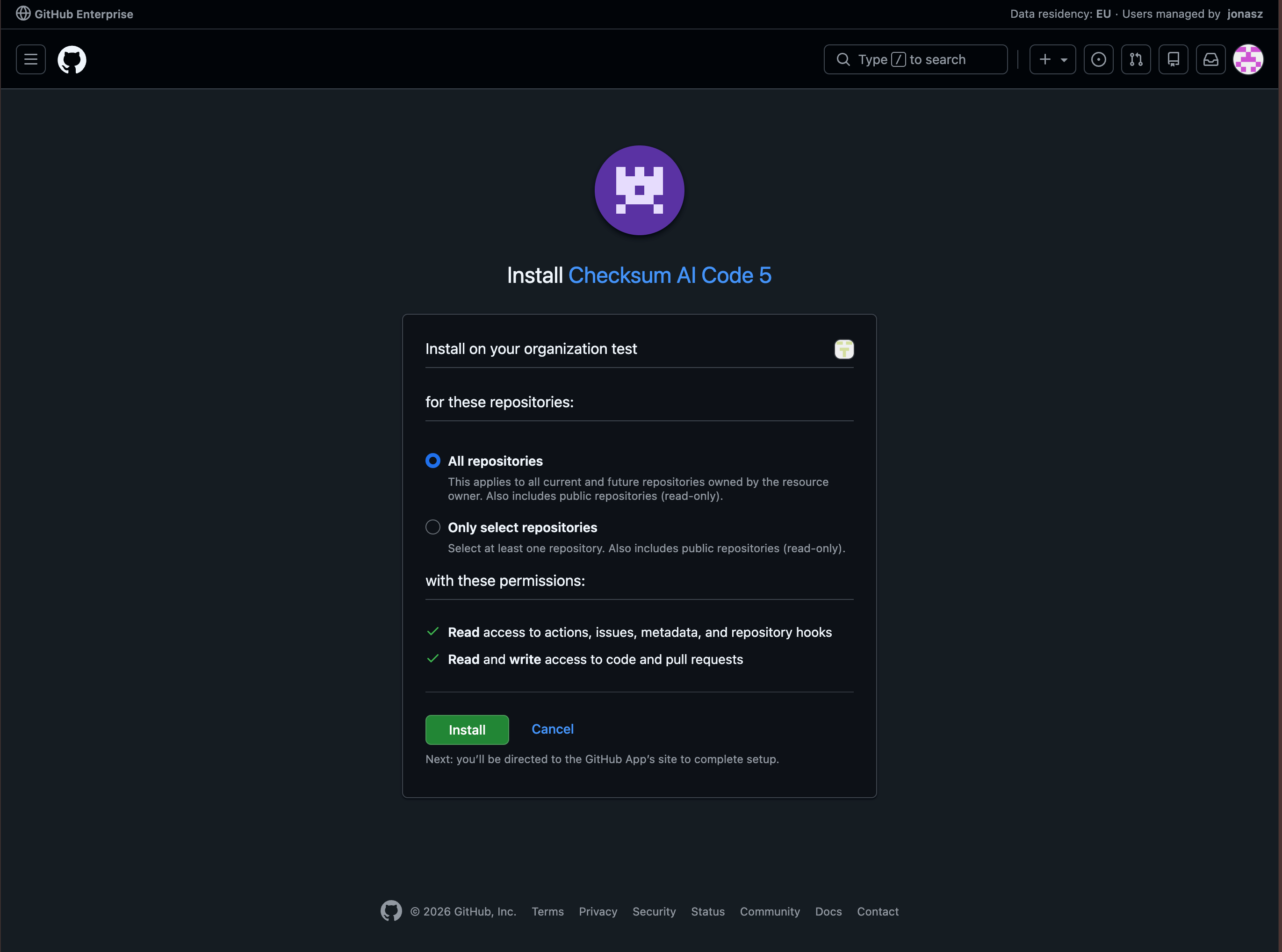
      <Step title="Install the app and choose repositories">
        Click **Install** and choose **All repositories** or **Only select repositories** (you can add more later). Click **Install**. GitHub redirects you back to Checksum, and the enterprise integration shows as connected.

        <Frame>
          <img src="https://mintcdn.com/checksum/Sno3sRcBVqZEH5c5/images/ghe-install.png?fit=max&auto=format&n=Sno3sRcBVqZEH5c5&q=85&s=6db5495d80594da38e14b4dd78869dbb" alt="Installing the Checksum app and selecting repositories" width="2742" height="2036" data-path="images/ghe-install.png" />
        </Frame>
      </Step>
    </Steps>

    If the GitHub tab closed before you finished, reopen the dialog and use **Reopen GitHub tab** to return to the same page. Once connected, select your tests and code repositories exactly as you would for `github.com`. From there, Checksum can generate and heal tests and open pull requests against your enterprise repositories.
  </Tab>

  <Tab title="GitLab">
    ### Connect GitLab with an access token

    <Steps>
      <Step title="Create a token">
        Create a personal or project access token. For a code repo: scopes `read_api`, `read_repository`, role `Reporter`. For a tests repo: scopes `api`, `write_repository`, role `Developer`. See [GitLab: project access tokens](https://docs.gitlab.com/user/project/settings/project_access_tokens/).
      </Step>

      <Step title="Open Settings → Git Integration">
        Select **GitLab**.
      </Step>

      <Step title="Enter the token">
        Paste your GitLab access token. For code repositories, have the **Project ID** ready.
      </Step>

      <Step title="Select the projects">
        Choose the projects to connect as tests and/or code repository.
      </Step>
    </Steps>

    The token's user (or the project or group token itself) needs at least the role above on the matching project. A **Guest** can't clone a private project, and a **Reporter** can't push branches or open merge requests.

    <Tip>
      **Test the token before adding it**

      Run `git clone https://oauth2:<TOKEN>@gitlab.com/your-group/your-repo.git`. If it clones, Checksum can read the repository with that token.
    </Tip>
  </Tab>

  <Tab title="Bitbucket">
    ### Connect Bitbucket

    <Steps>
      <Step title="Gather details">
        Your **Workspace** name and **Repository** name.
      </Step>

      <Step title="Create an access token">
        Code repo: `Repositories: Read`, `Pull requests: Read`. Tests repo: `Repositories: Read + Write`, `Pull requests: Read + Write`. See [Atlassian: repository access tokens](https://support.atlassian.com/bitbucket-cloud/docs/repository-access-tokens/).
      </Step>

      <Step title="Connect in Checksum">
        Enter the workspace, repository, and token under **Settings → Git Integration**, or send them to your Checksum contact.
      </Step>
    </Steps>
  </Tab>

  <Tab title="Azure DevOps">
    ### Connect Azure DevOps (code repository)

    <Steps>
      <Step title="Gather details">
        **Organization**, **Project**, and **Repository** names.
      </Step>

      <Step title="Create a PAT">
        Minimum scope: `Code: Read`. See [Microsoft: personal access tokens](https://learn.microsoft.com/azure/devops/organizations/accounts/use-personal-access-tokens-to-authenticate).
      </Step>

      <Step title="Connect in Checksum">
        Enter the details under **Settings → Git Integration**, or send them to your Checksum contact.
      </Step>
    </Steps>

    <Note>
      **Code repositories only**

      The tests repository must be on GitHub, GitLab, or Bitbucket.
    </Note>
  </Tab>
</Tabs>

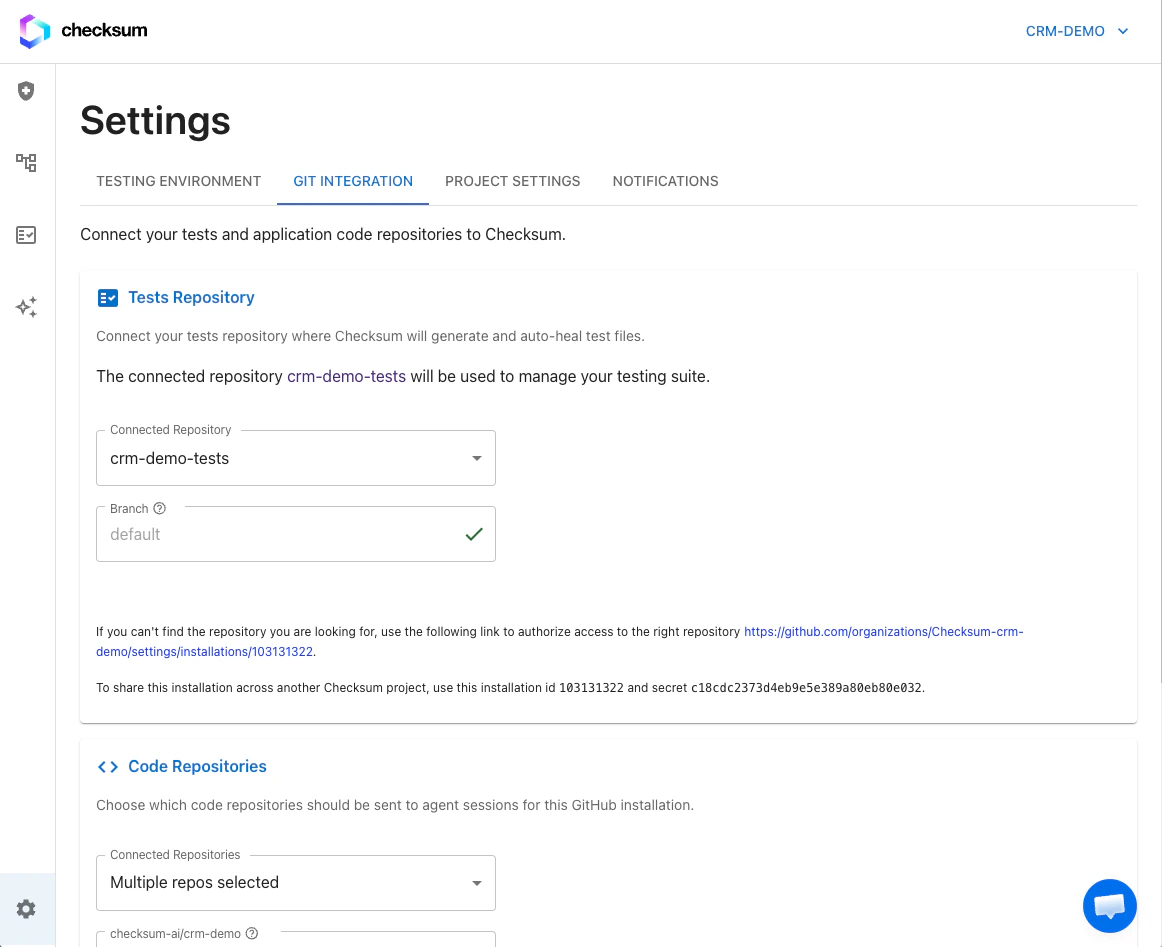
## Change repositories

Your repositories are selected during onboarding. To point Checksum at a different repository:

<Steps>
  <Step title="Open Settings → Git Integration" />

  <Step title="Tests Repository">
    Select the repository that holds your Playwright tests. Checksum opens PRs here. Change it only if your tests move to a different repository.
  </Step>

  <Step title="Code Repository (required)">
    Select your application source repository. You can change it at any time.
  </Step>
</Steps>

<Frame caption="Selecting the tests and code repositories.">
  <img src="https://mintcdn.com/checksum/jreTwWrmFV2djRX_/images/repo.png?fit=max&auto=format&n=jreTwWrmFV2djRX_&q=85&s=dedb006a9eb63afa0c86a390776e7f50" alt="Git Integration repository selection" width="1162" height="947" data-path="images/repo.png" />
</Frame>

## Integration status

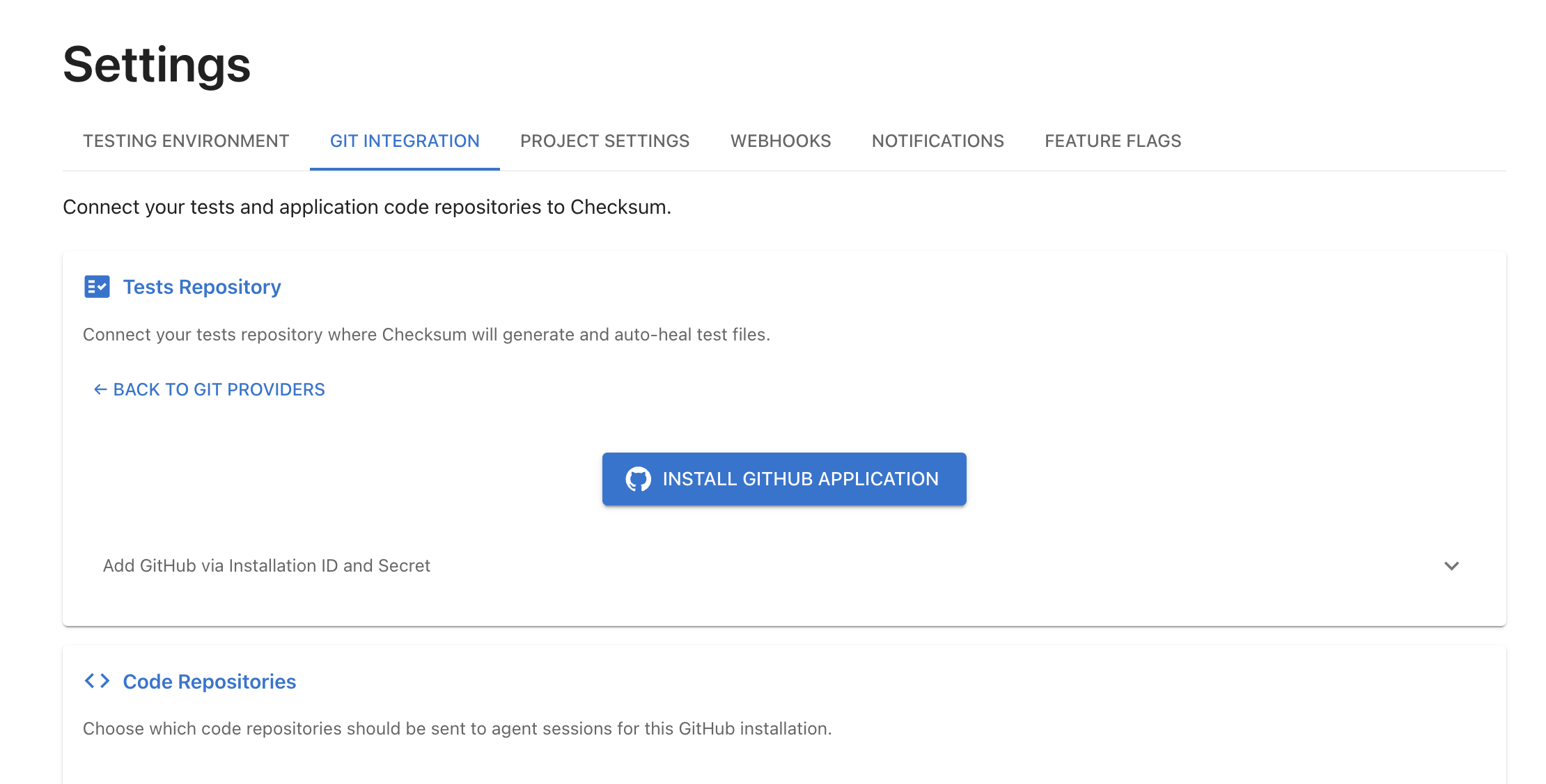
The Settings page shows the state of your integration:

| Status | Meaning |
| - | - |
| **Active** | Connected and working |
| **Not Installed** | No GitHub App or GitLab token configured |
| **No Repositories** | The app is installed, but no repositories were granted access |
| **No Selected Repository** | Repositories are available, but none has been selected yet |
<Frame>
  <img src="https://mintcdn.com/checksum/jreTwWrmFV2djRX_/images/github.png?fit=max&auto=format&n=jreTwWrmFV2djRX_&q=85&s=397d4b869bd49a6500818c9edffb9a80" alt="Git Integration status" width="2220" height="1126" data-path="images/github.png" />
</Frame>

## Change or remove an integration

* **Change repositories:** go to **Settings → Git Integration** and update your selection.
* **Remove the integration:** go to **Settings → Git Integration** and click **Remove Integration**.

<Warning>
  **Removing disables delivery**

  Removing the Git integration disables test generation and auto-healing, because Checksum can no longer open PRs in your repository.
</Warning>

<div className="part bg"><span className="part-icon">i</span><div><div className="part-title">How it works</div><div className="part-sub">What Checksum does with each repository</div></div></div>

## Tests repository and code repository

Checksum works with two repositories, and they can be the same one:

| Repository | What Checksum does | Access |
| - | - | - |
| **Tests repository** (required) | Opens pull requests with generated and healed tests, creates branches, comments, and may auto-merge | Read and write |
| **Code repository** (required) | Reads application code and PR context so agents understand your routes, components, and interactions. Checksum **never writes** to it. | Read-only |

<Tip>
  **Why the code repository matters**

  The code repository gives Checksum significantly faster and more accurate detection, and better generation and healing. If your tests live alongside your app code, the same repository is used for both.
</Tip>

## Troubleshooting

<AccordionGroup>
  <Accordion title="GitHub won't let me create or install the app (ghe.com)">
    You're either not an **organization owner** or signed in to the wrong GitHub account. Sign in as an owner of your `*.ghe.com` enterprise and reopen the GitHub tab. On shared machines, a fresh browser profile or incognito window usually fixes it.
  </Accordion>

  <Accordion title="The host field won't accept my value (ghe.com)">
    The host must end in `.ghe.com`, such as `acme.ghe.com`. You can paste a full URL, and the field strips `https://`, any path, and the port. A GitHub Enterprise **Server** hostname like `github.your-company.com` won't work.
  </Accordion>

  <Accordion title="I finished on GitHub but Checksum still shows &#x22;not connected&#x22;">
    Make sure you clicked **Install** (not just **Create GitHub App**) and selected at least one repository, then refresh **Settings → Git Integration**. The flow is safe to repeat.
  </Accordion>

  <Accordion title="Status says &#x22;No Repositories&#x22;">
    The app is installed but wasn't granted any repos. In GitHub, open the app's installation settings and add the repositories, then refresh.
  </Accordion>

  <Accordion title="We use GitHub Enterprise Server (self-hosted)">
    Not supported yet. Only GitHub Enterprise Cloud with data residency (`*.ghe.com`) is. Contact Checksum support to discuss options.
  </Accordion>

  <Accordion title="GitHub shows the app as not installed after I requested it">
    An organization owner still has to approve the installation request. See [If you're not an organization owner](#if-you’re-not-an-organization-owner).
  </Accordion>

  <Accordion title="403 &#x22;You are not allowed to download code from this project&#x22;">
    The token's user or role can't read the repository, for example a GitLab **Guest**. Recreate the token with at least the minimum role in [Required permissions](#required-permissions): `Reporter` for a code repository, `Developer` for a tests repository.
  </Accordion>

  <Accordion title="GitLab says the token is missing a scope">
    Recreate the token with the scopes listed for that repository in [Required permissions](#required-permissions): `read_api` and `read_repository` for a code repository, `api` and `write_repository` for a tests repository.
  </Accordion>

  <Accordion title="Checksum can't open pull requests">
    The token has read access but not write access on the tests repository. Grant write access: GitLab `api` and `write_repository`, or Bitbucket `Repositories: Read + Write` and `Pull requests: Read + Write`. On GitHub, make sure the app installation includes the tests repository.
  </Accordion>

  <Accordion title="Checksum can't merge into a protected GitLab branch">
    Use a token with the `Maintainer` role, or add a branch rule that lets Checksum merge.
  </Accordion>
</AccordionGroup>

## Related

<CardGroup cols={2}>
  <Card title="Test Repository & Config" icon="gear" href="/docs/test-repository">
    How the repo mirror reads and writes.
  </Card>

  <Card title="/checksum generate" icon="wand-magic-sparkles" href="/docs/generate-tests">
    Trigger generation from a PR comment.
  </Card>

  <Card title="Security & Access" icon="shield-halved" href="/docs/security-and-access">
    A permissions summary for security review.
  </Card>
</CardGroup>