At a glance
Reference for AI: results at a glance
Reference for AI: results at a glance
- Base URL
https://api.checksum.ai/public-api/v1. Every request sendsAuthorization: Bearer $CHECKSUM_API_KEY. - Run ID: the
runIdfrom an execution endpoint, oridfromGET /test-runs/latest. Same UUID astestRunId. - Uploads: CLI runs upload only when
options.hostReportsis on (defaulttruewhenCI=true). API and GitHub Action runs always upload. recoveredcounts as passing but is flagged separately.bug= Checksum classified the failure as a likely product defect.
Developer guide
CLI, REST API, and MCP access to results, reports, artifacts, and verdicts
Work with results from the CLI
Open the latest local report
After running tests on your machine, open the HTML report from the most recent run in your default browser:Re-run only what didn’t pass
Instead of running the whole suite again, re-run just the test files that failed or were recovered in an earlier run:--cksm-affected or -g. More in Re-run failed tests.
Reference for AI: results from the CLI
Reference for AI: results from the CLI
Get results with the REST API
Scripts and CI jobs can read a run’s results directly. The usual path is: find the run, list the tests that failed, then pull the artifacts for the ones you care about. Every request sendsAuthorization: Bearer $CHECKSUM_API_KEY (see API Keys & Authentication). You’ll need a run ID: the runId returned when you start a run, or the id of the latest run (which ID is which).
Find the latest run
This returns the most recent completed, non-manual run for the project:id with the calls below, and with POST /auto-heal if you want Checksum to fix the failures.
See how each test did
Ask for the run’s per-test results. Add?status=failed to see only the failures:
healthStatus, such as healthy or flaky). The counts at the top use the same terms as the rest of Checksum (see Status vocabulary).
Get the report and a test’s artifacts
For the full HTML report of a run, or the trace, screenshots, and video of a single test:Example: a script that finds what failed in a run and fetches its artifacts
Example: a script that finds what failed in a run and fetches its artifacts
Needs
curl, jq, and CHECKSUM_API_KEY. Set RUN_ID to the runId from your execution call, or let the script use the latest completed run.Record a verdict from your own tooling
If you triage failures in your own system, such as a triage bot, you can send the decision back to Checksum. Each verdict marks a test as abug, recovered, healing, or needing triage, with a short note, and Checksum updates the run’s counts. It’s the API equivalent of triaging a failure in the app.
GET /health-dashboard/bugs.
Reference for AI: Results API
Reference for AI: Results API
Base URL
https://api.checksum.ai/public-api/v1. Header on every request: Authorization: Bearer $CHECKSUM_API_KEY. POST requests also send Content-Type: application/json.GET https://api.checksum.ai/public-api/v1/test-runs/latest
Returns the latest completed, non-manual run for the project. Use the returnedid with the result, report, attachment, and auto-heal endpoints.Next:
GET /test-runs/{id}/results.GET https://api.checksum.ai/public-api/v1/test-runs/\{id\}/results
Returns per-test results for a completed run.Next: for a failing test,
GET /test-runs/{runId}/tests/{testId}/attachments.GET https://api.checksum.ai/public-api/v1/test-runs/\{id\}/report
Returns a URL to the full HTML report for the run. Path parameterid (string, required): the test run ID.GET https://api.checksum.ai/public-api/v1/test-runs/\{runId\}/tests/\{testId\}/attachments
Returns attachments for one test in a run: traces, screenshots, and videos.POST https://api.checksum.ai/public-api/v1/test-runs/\{testRunId\}/report/verdicts
Records human or automated verdicts for tests in a run report, then updates the run’s counts.Bug entities are managed in the Feature Health Dashboard; list them with
GET /health-dashboard/bugs (/health-dashboard#list-bugs).Ask your coding agent about a run
With the Checksum MCP server connected, you can ask about results in plain English:Reference for AI: MCP results tools
Reference for AI: MCP results tools
Both are read-only. Artifact links are signed and expire. Only standard E2E runs are listed: API-test runs and hidden runs don’t appear.
In the Checksum web app
Browse runs, open reports, and debug with the trace viewer
Test Results
Choose Test Results in the sidebar to see all runs. Filter by:- Environment: which testing environment was used
- Branch: which git branch the tests ran against
- Mode: normal or auto-heal
- Status: running, passed, or failed
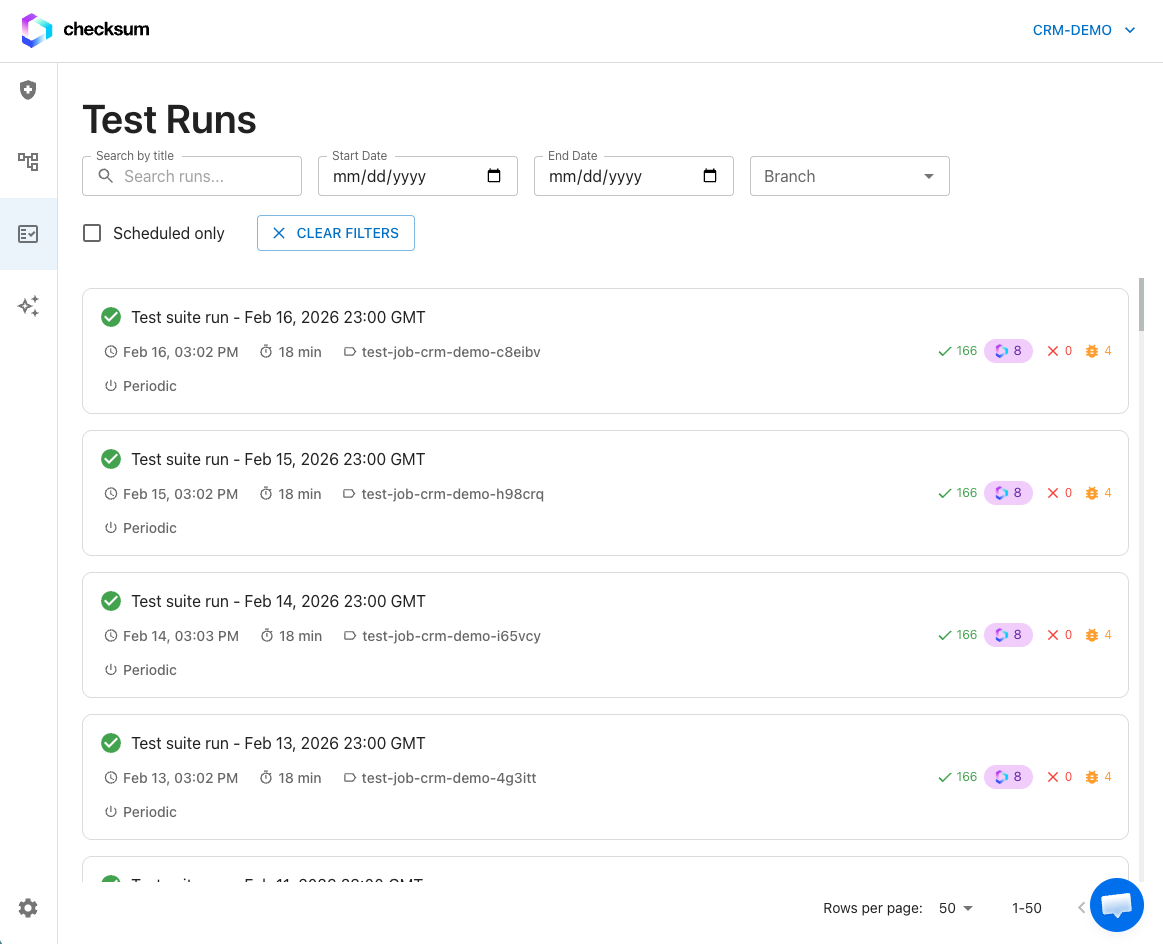
Test Results: every run, filterable by environment, branch, mode, and status.
Run details
Click a run to open its report: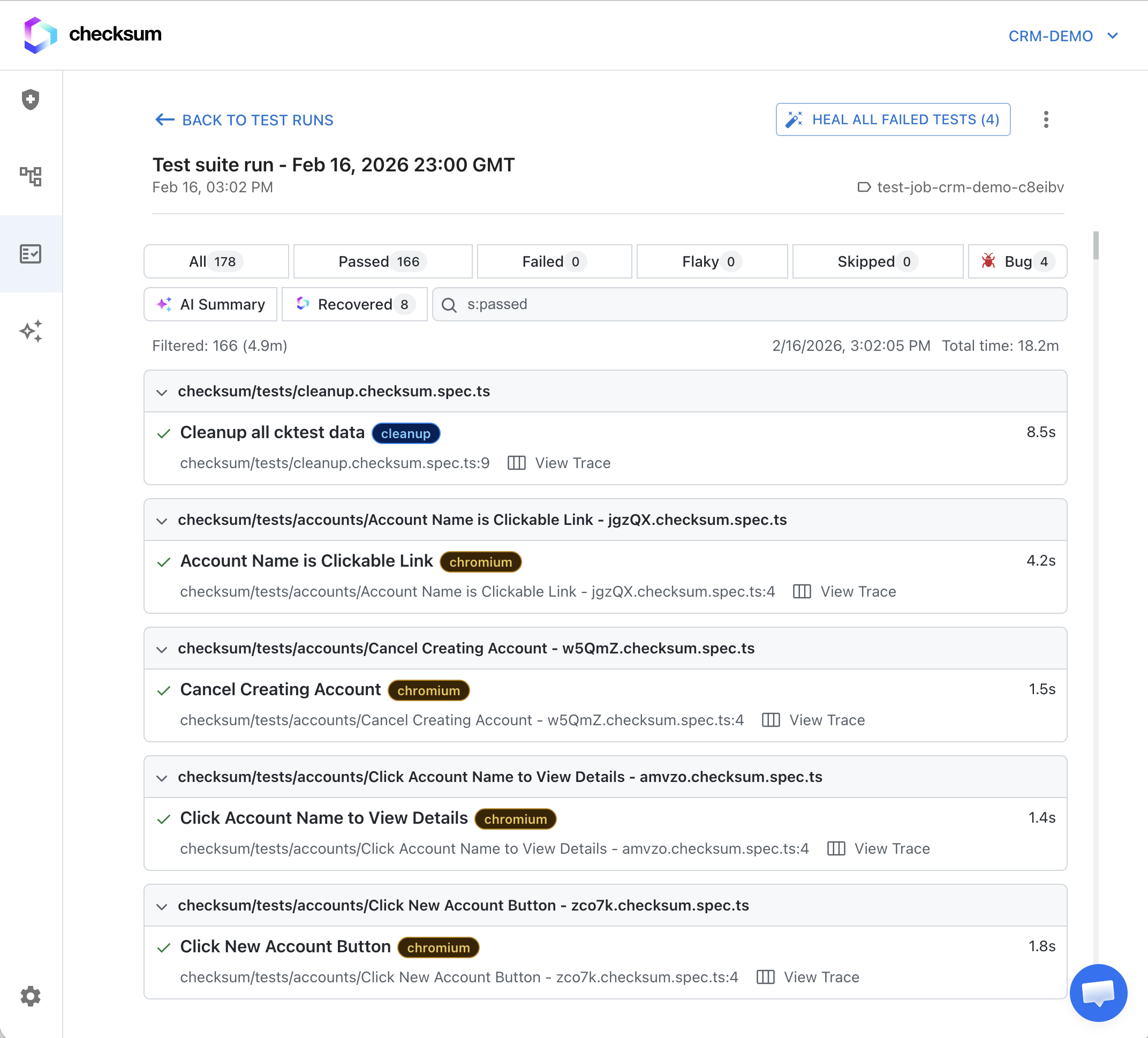
Run details, including recovered tests.
Recovered tests
A Recovered test initially failed but was fixed on the fly by auto-recovery. It counts as passing, but it’s flagged separately so you can see it:- It shows a distinct Recovered status indicator.
- The recovery reason appears at the top of the test details, e.g. “selector not found — used smart selector” or “element not visible — retried with wait.”
- You can see exactly what the CLI did. Tests that recover repeatedly are worth a look, even though they pass.
Trace viewer
The Playwright trace viewer steps through an execution frame by frame. It’s the most useful tool for understanding why a test failed. Click a failed test in the run details and select View Trace. It shows:- Timeline of every action the test performed
- Screenshots before and after each action
- DOM snapshot at each step
- Network requests made during each action
- Console browser logs
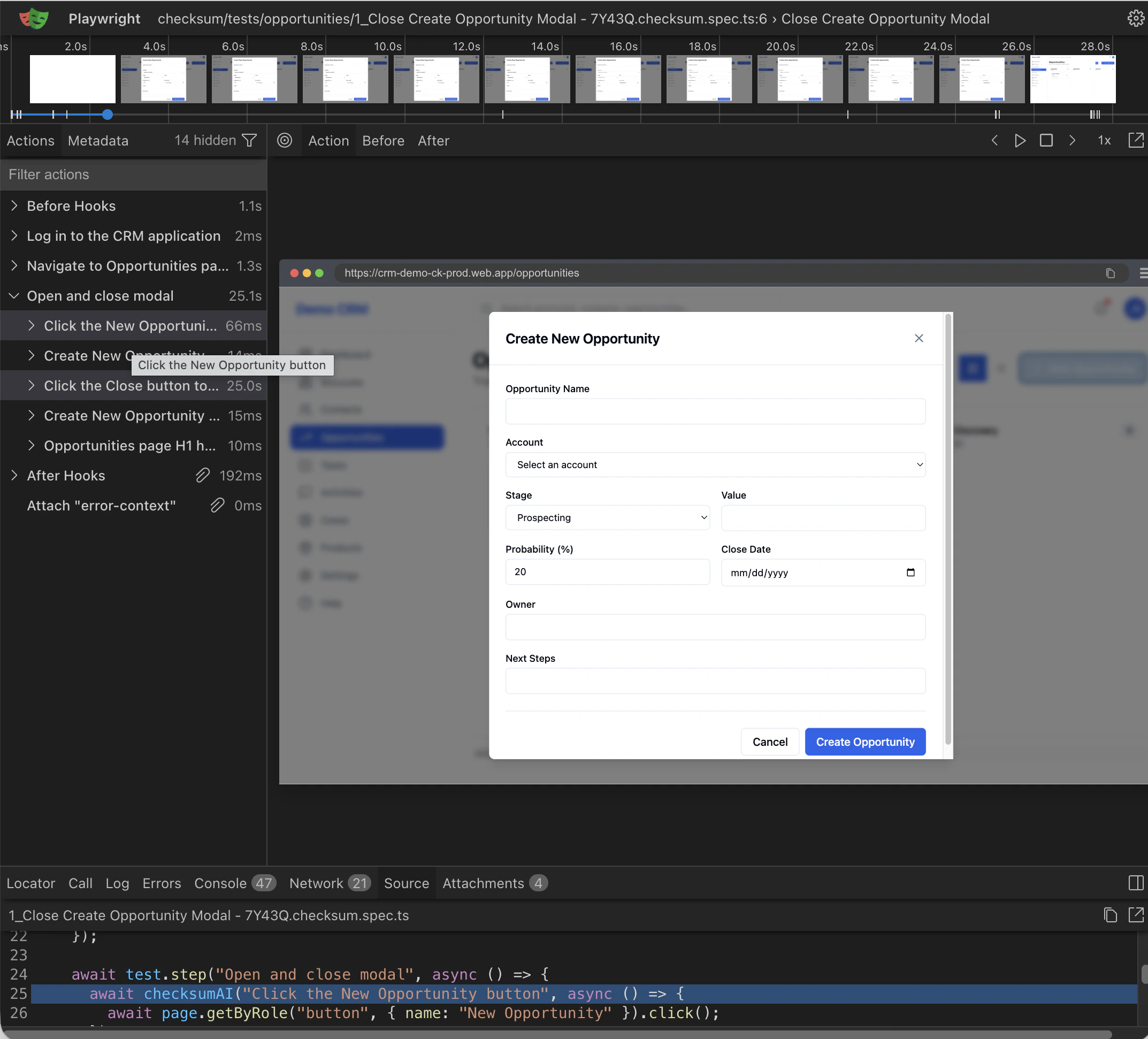
The trace viewer, opened from a failed test.
Linked commits and PRs
Each run is automatically linked to the git commit that was checked out and to the pull request, if there is one. That makes it easy to trace a failure back to the change that caused it.How it works
What gets uploaded and what each status means
Where results come from
When report hosting is on, the CLI uploads after each run.options.hostReports defaults to true when CI=true, which most CI providers set automatically. Local runs keep reports on your machine unless you enable hostReports (see checksum.config.ts). Runs triggered from the API or the GitHub Action execute in Checksum’s cloud and always upload.
Status vocabulary
These terms mean the same thing everywhere: in the app, the API, and notifications.Troubleshooting
My local run doesn't appear in Test Results
My local run doesn't appear in Test Results
Local runs upload only when
hostReports is enabled. Set CI=true or options.hostReports: true./test-runs/latest doesn't return the run I just started
/test-runs/latest doesn't return the run I just started
It returns the latest completed, non-manual run. Use the
runId from your execution call instead.An artifact link from the MCP server stopped working
An artifact link from the MCP server stopped working
Trace, screenshot, and video links are signed and expire. Ask the agent to download the run again.
Related
Running Tests
Trigger runs and poll their status.
Auto-Healing
Turn failures into fix PRs.
Feature Health Dashboard
Health across runs and bug triage.